User Guide
ProfBook is a desktop app for managing contacts, optimized for use via a Command Line Interface (CLI) while still having the benefits of a Graphical User Interface (GUI). If you can type fast, ProfBook can get your contact management tasks done faster than traditional GUI apps. ProfBook helps CS2103 Instructors manage both students and TAs contacts within teams and tutorial groups. It is optimized for CLI users so that tasks can be done in bulk especially when dealing with huge number of contacts
- Quick start
-
Features
- Viewing help :
help - Attribute Summary:
- Adding a person:
add - Listing all persons :
list - View Statistics of last searched list :
stat - Editing a person :
edit - Locating persons by name:
find - Deleting a person :
delete - Bulk Tag Persons :
bulk_tag - Sort contacts by attribute:
sort - Import existing contacts from JSON:
import - Export filtered contacts to JSON:
export - Export emails of filtered contacts to txt:
exportemail - Undoing a command:
undo - Redoing a command:
redo - Exiting the program :
exit - Saving the data
- Editing the data file
- Viewing help :
- FAQ
- Command summary
Quick start
-
Ensure you have Java
11or above installed in your Computer. -
Download the latest
profbook.jarfrom here. -
Copy the file to the folder you want to use as the home folder for your ProfBook.
-
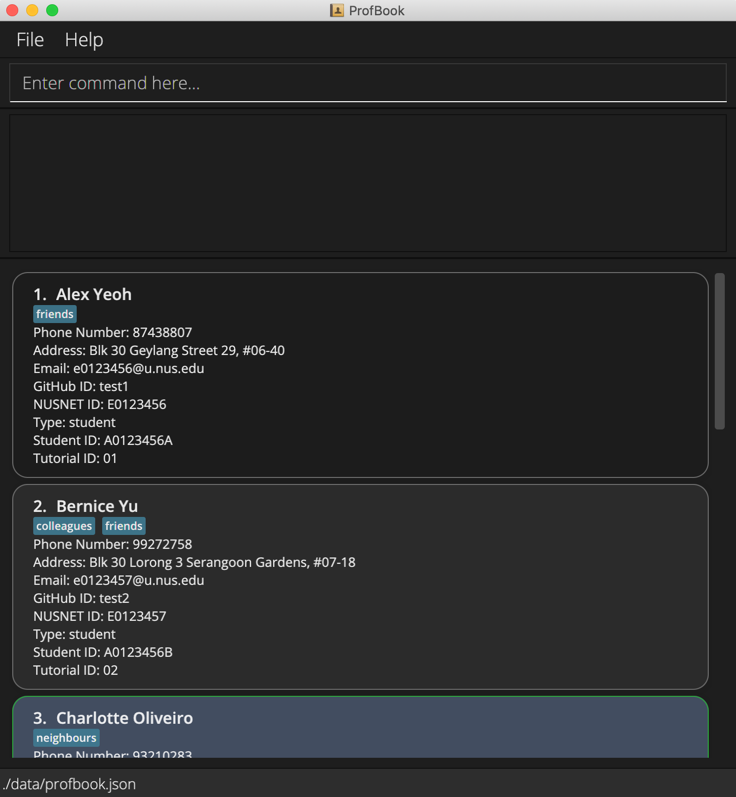
Double-click the file to start the app. The GUI similar to the below should appear in a few seconds. Note how the app contains some sample data.
-
Type the command in the command box and press Enter to execute it. e.g. typing
helpand pressing Enter will open the help window.
Some example commands you can try:-
list: Lists all contacts. -
addn/John Doe p/98765432 a/311, Clementi Ave 2, #02-25 t/friends t/owesMoney g/john-doe N/e0123456 r/student s/A0123456X T/11: Adds a Person with the given details. -
delete3: Deletes the 3rd contact shown in the current list. -
exit: Exits the app.
-
-
Refer to the Features below for details of each command.
Features
 Notes about the command format:
-
Words in
UPPER_CASEare the parameters to be supplied by the user.
e.g. inadd n/NAME,NAMEis a parameter which can be used asadd n/John Doe. -
Items in square brackets are optional.
e.gn/NAME [t/TAG]can be used asn/John Doe t/friendor asn/John Doe. -
Items in curly brackets indicate that one of the items should be chosen, with each item option separated using
|.
e.g.n/NAME {r/student|r/tutor}can be used asn/NAME r/studentorn/NAME r/tutor. -
Items with
… after them can be used multiple times including zero times.
e.g.[t/TAG]…can be used ast/friend,t/friend t/familyetc. -
Parameters can be in any order.
e.g. if the command specifiesn/NAME p/PHONE_NUMBER,p/PHONE_NUMBER n/NAMEis also acceptable. -
If a parameter is expected only once in the command but you specified it multiple times, only the last occurrence of the parameter will be taken.
e.g. if you specifyp/12341234 p/56785678, onlyp/56785678will be taken. -
Extraneous parameters for commands that do not take in parameters (such as
help,list,exitandundo) will be ignored.
e.g. if the command specifieshelp 123, it will be interpreted ashelp.
Viewing help : help
Shows a message explaining how to access the help page.

Format: help
Attribute Summary:
Attribute | Prefix | Format ——|—|———————————————————
| NAME | n/ |
Names should only contain alphanumeric characters and spaces with max length 60 characters, and it should not be blank |
| PHONE | p/ |
Phone numbers should only contain numbers, and it should be at least 3 digits long |
e/ |
Emails should be of the format "NUSNET_ID"@u.nus.edu
|
|
| ADDRESS | a/ |
Addresses can take any values with max length of 80 characters, and it should not be blank |
| TAG | t/ |
Tags names should be alphanumeric |
| GITHUB_ID | g/ |
GitHub ID must be valid ie alphanumeric separated by single dash and it should not start or end with a dash, and it should not be blank |
| NUSNET_ID | N/ |
NUS Network ID must be valid ie starting with e or E followed by 7 digits, and it should not be blank |
| TYPE | r/ |
Type must be valid ie student or tutor, and it should not be blank |
| STUDENT_ID | S/ |
Student ID must be valid ie starting with a or A followed by 7 digits and a single alphabet, and it should not be blank |
| TUTORIAL_ID | T/ |
Tutorial ID must be valid ie a 2 digits, and it should not be blank |
Adding a person: add
Adds a person to the address book.
Format: add n/NAME g/GITHUB_ID N/NUS_NETWORK_ID {r/student|r/tutor} s/STUDENT_ID T/TUTORIAL_ID p/PHONE a/ADDRESS [t/TAG]…
- A person cannot be added if he or she already exists in ProfBook, i.e. they are the same person.
- The email field is automatically created depending on the NUSNET_ID entered.
- 2 persons are considered similar if they share the exact same name, e.g. if John Doe already exists in ProfBook,
add n/John Doe s/A0222530X N/E0560062 g/meixuanjin T/01 p/98159386 a/John Street, block 456, #01-01would not add a new John Doe to ProfBook.
 Tip:
A person can have any number of tags (including 0)
Also two persons are same if their names are equal with case sensitivity taken into consideration
Tip:
A person can have any number of tags (including 0)
Also two persons are same if their names are equal with case sensitivity taken into consideration
Examples:
add n/Siddharth Srivastava s/A0226588N N/E0638874 g/Siddharth-Sid T/16 r/student p/98765432 a/John street, block 123, #01-01 t/incompleteIpadd n/Rachel Cheah s/A0894765F N/E0987654 g/RachelCheah T/16 r/student p/12345678 a/123, Jurong West Ave 6, #08-111
Listing all persons : list
Shows a list of all persons in the address book.
Format: list
View Statistics of last searched list : stat
Shows a count of the tags, type and tutorial ID of the last searched list
Format: stat
Editing a person : edit
Edits an existing person in the address book.
Format: edit INDEX [n/NAME] [g/GITHUB_ID] [N/NUS_NETWORK_ID] [{r/student|r/tutor}] [s/STUDENT_ID] [T/TUTORIAL_ID] [p/PHONE] [a/ADDRESS] [t/TAG]…
- Edits the person at the specified
INDEX. The index refers to the index number shown in the displayed person list. The index must be a positive integer 1, 2, 3, … - At least one of the optional fields must be provided.
- When editing tags, the existing tags of the person will be removed and new tags will be added i.e adding of tags is not cumulative.
- You can remove all the person’s tags by typing
t/without specifying any tags after it. - The Editing of NUSNET_ID also changes the Email automatically.
Examples:
-
edit 1 p/91234567 N/e0000000Edits the phone number of the 1st person to be91234567and the NUSNET_ID to beE0000000and the email to becomee0000000@u.nus.edu. -
edit 2 n/Betsy Crower t/Edits the name of the 2nd person to beBetsy Crowerand clears all existing tags. -
edit 1 n/Siddharth Srivastava t/IncompleteIPEdits the name of the 1st person to beSiddharth Srivastavaand replaces all existing tags with the tagIncompleteIP.
Locating persons by name: find
Finds persons with the given search criteria and value.
Format: find {n/|s/|N/|g/|T/|r/|p/|a/|t/full/|t/}KEYWORD [MORE_KEYWORDS]
- The search is case-insensitive. e.g friend will also match Friend or FrIend or FRIEND.
- The order of the keywords does not matter. e.g.
Hans Bowill matchBo Hans. - All attributes can be searched, by specifying the prefix before the keyword.
- Partial matching can be done for all attributes except Tutorial ID and Role e.g. for name, Han will match Hans.
- Partial matching is performed from the first letter of each value, i.e.
find n/owill return Charlotte Oliveiro since Oliveiro starts with ‘o’, but will not return Alex Yeoh or Roy Balakrishnan since they do not contain values starting with the specified key. - Tags can be searched either using full or partial matching, using
t/full/for full keyword matching andt/for partial matching. The first key to be searched should appear right after the prefix, e.g.find t/full/friends. - Persons matching at least one keyword will be returned (i.e.
ORsearch). e.g.Hans Bowill returnHans Gruber,Bo Yang
Examples:
-
find n/Hans Bowill returnHans Gruber, andBo Yang -
find t/friendwill return all the contacts with the tagfriend -
find T/01returnsAlex Yeoh -
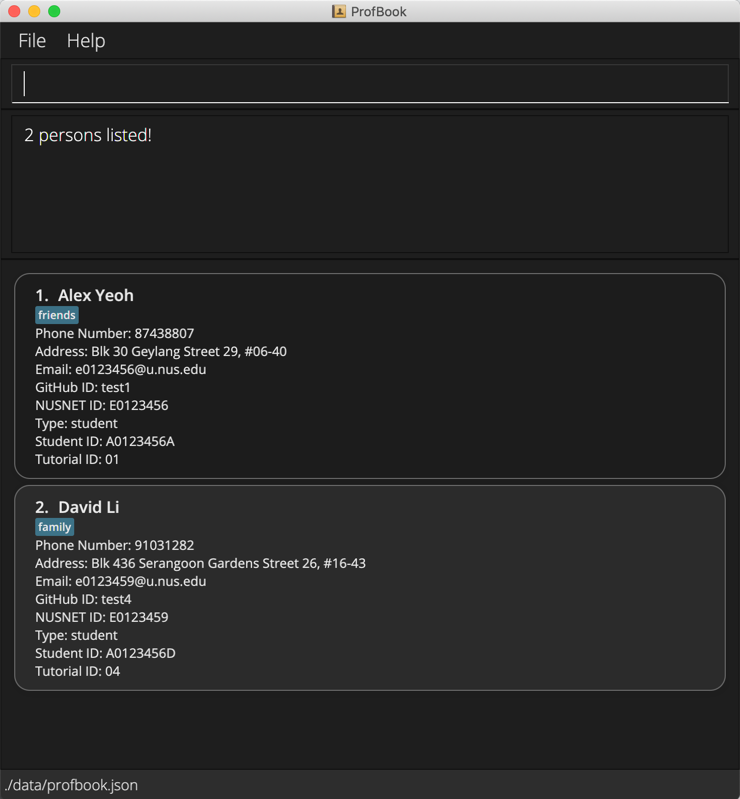
find t/frienreturnsAlex Yeoh,Bernice Yu -
find n/alex davidreturnsAlex Yeoh,David Li
Deleting a person : delete
Deletes a person or multiple contacts from the address book.
Format: delete {INDEX | -a | -f}
- Deletes the person at the specified
INDEX. - The index refers to the index number shown in the displayed person list.
- The index must be a positive integer 1, 2, 3, …
- You can use the optional -f argument to clear all contacts from a previous find queries.
- The -a argument deletes all contacts unless specified by the [-f] argument to delete only the previous find query.
Examples:
-
listfollowed bydelete 2deletes the 2nd person in the address book. -
find n/Betsyfollowed bydelete 1deletes the 1st person in the results of thefindcommand. -
find n/Betsyfollowed bydelete -fdeletes all the entries of the results of thefindcommand. -
delete -adeletes all entries in the address book.
Bulk Tag Persons : bulk_tag
Adds a tag to the filtered list of Persons.
Format: bulk_tag t/TAGNAME [t/TAGNAME…]
- If any of the tags are in the incorrect format an error will be thrown
- The
bulk_tagcommand will add the specified tag or tags to all the persons in the filtered person list in the ProfBook. - If a Person already has the tag/tags then no tag/tags will be added to that person.
Examples:
-
find n/Alicefollowed bybulk_tag t/friendsadds the tagfriendsto all the persons in the filtered person list. -
bulk_tag t/friendsadds the tagfriendsin the filtered person list.
Sort contacts by attribute: sort
Sort all the contacts in the ProfBook in ascending order.
Format: sort [ATTRIBUTE] [-r]
- Contacts will be sorted by the attribute specified, then by name in the case of ties.
- If no attribute is specified, contacts will be sorted by name by default.
- The -r argument sorts the contacts in descending order.
- Sorting by tags will sort by the number of tags attached to the contact.
- Sorting by address is not supported.
Examples:
-
sortsorts the contacts by name. -
sort n/also sorts the contacts by name. -
sort -rsorts the contacts by name in descending order. -
sort T/sorts the contacts by Tutorial ID.
Import existing contacts from JSON: import
Merges all contacts in a JSON file with the existing contacts in ProfBook.
Format: import FILENAME
- Reads the contacts in
FILENAMEand merges them into the existing ProfBook. -
FILENAMEshould refer to the relative filepath from the jar file.
Example:
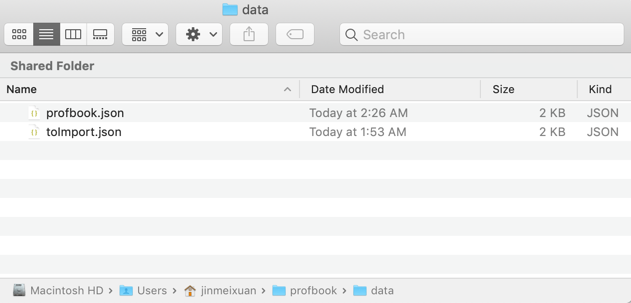
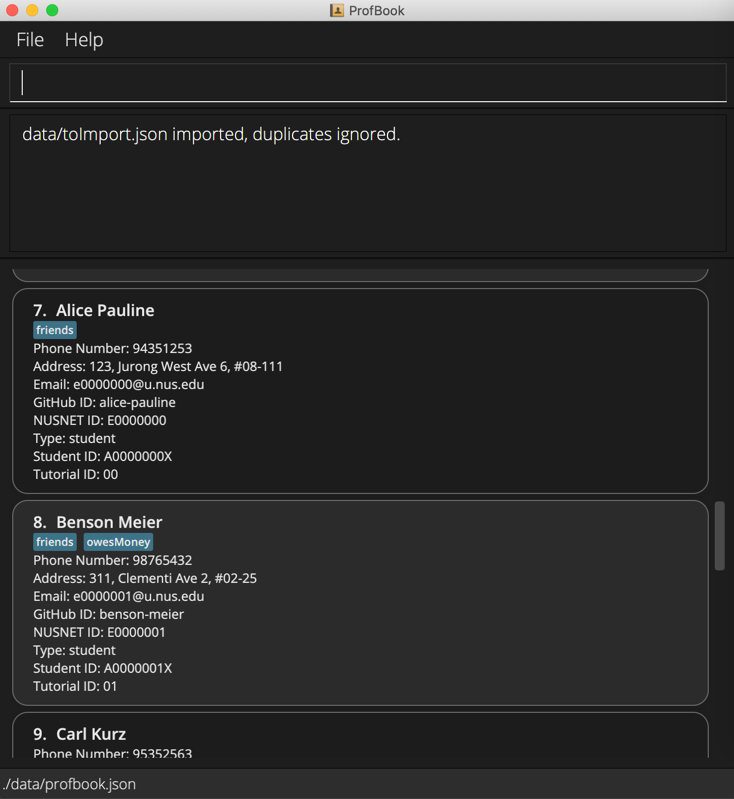
Step 1: Store the file you wish to import into the data folder of your ProfBook folder.
Step 2: type import data/FILENAME into the command line.
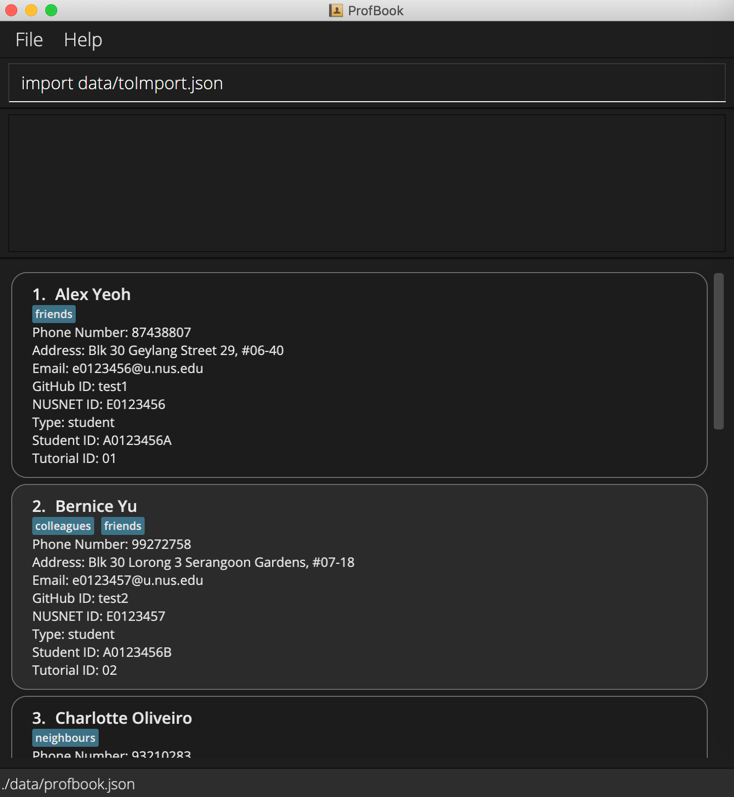
Step 3: Done! Now all your imported contacts will appear at the bottom of ProfBook.
Export filtered contacts to JSON: export
Exports all current filtered contacts into a JSON file.
Format: export FILENAME
Example:
export t01students.json
- Takes the current filtered list of contacts and writes them into
FILENAME
Export emails of filtered contacts to txt: exportemail
Exports the list of contacts of all current filtered contacts into a txt file. This can then be used to create a group of contacts in outlook to mass send emails to.
Format: exportemail FILENAME
Example:
exportemail t01studentsEmail.txt
- Takes the current filtered list of contacts and writes the emails into
FILENAME
Undoing a command: undo
Undoes a previously executed command. undo can reverse any commands executed after the program was last started (except undo, export, and exit).
After executing the undo command, the remaining number of commands that can be undid is displayed. For example, the following output shows that there are 2 more commands that can be undid; the undo command can be executed 2 more times.
Undo successful Remaining undo count: 2
Format: undo
Redoing a command: redo
Re-performs a command that was undone. redo can redo any undone command up to the last executed command; executing a command that is not undo or redo will clear the redo history.
After executing the redo command, the remaining number of commands that can be redone is displayed. For example, the following output shows that there are 3 more commands that can be redone.
Undo successful Remaining undo count: 3
Format: redo
Exiting the program : exit
Exits the program.
Format: exit
Saving the data
ProfBook data are saved in the hard disk automatically after any command that changes the data. There is no need to save manually.
Editing the data file
ProfBook data is saved as a JSON file [JAR file location]/data/profbook.json. Advanced users are welcome to update
data directly by editing that data file.
 Caution:
If your changes to the data file makes its format invalid, ProfBook will discard all data and start with an empty data
file at the next run.
Caution:
If your changes to the data file makes its format invalid, ProfBook will discard all data and start with an empty data
file at the next run.
FAQ
Q: How do I transfer my data to another Computer?
A: Install the app in the other computer and overwrite the empty data file it creates with the file that
contains the data of your previous ProfBook home folder.
Command summary
| Action | Format, Examples |
|---|---|
| Add |
add n/NAME g/GITHUB_ID N/NUS_NETWORK_ID {r/student | r/tutor} s/STUDENT_ID T/TUTORIAL_ID p/PHONE a/ADDRESS [t/TAG]… e.g., add n/John Doe p/98765432 a/311, Clementi Ave 2, #02-25 t/friends t/owesMoney g/john-doe N/e0123456 r/student s/A0123456X T/11
|
| Delete |
delete {INDEX | -a | -f} e.g., delete 3
|
| Edit |
edit INDEX [n/NAME] [g/GITHUB_ID] [N/NUS_NETWORK_ID] [{r/student | r/tutor}] [s/STUDENT_ID] [T/TUTORIAL_ID] [p/PHONE] [a/ADDRESS] [t/TAG]… e.g.,edit 2 n/John Doe
|
| Find |
find {n/ | s/ | N/ | g/ | T/ | r/ | p/ | a/ | t/full/ | t/partial/} KEYWORD [MORE_KEYWORDS] e.g., find n/Alex
|
| List | list |
| Bulk Tag |
bulk_tag t/TAGNAME [t/TAGNAME…]e.g., bulk_tag t/friends
|
| Sort |
sort [ATTRIBUTE] [-r] e.g., sort T/ -r
|
| Import |
import FILENAME e.g., import tutors.json
|
| Export |
export FILENAME e.g., export t01students.json
|
| Export Email |
exportemail FILENAME e.g., exportemail t01studentsEmail.txt
|
| Undo | undo |
| Redo | redo |
| Statistics | stat |
| Help | help |
| Exit | exit |